


Onmyoji Global automation for Windows

Shira

Your daily Onmyoji grind, done in the background.

Shira runs Realm Raid, Guild Raid, Exploration and Bondling Fairyland on the Onmyoji Global Steam client. Its input goes to the game window only — it never takes focus or moves your mouse, so you can keep using your PC.

  • Windows 10/11
  • Portable folder, no installer
  • Several accounts at once
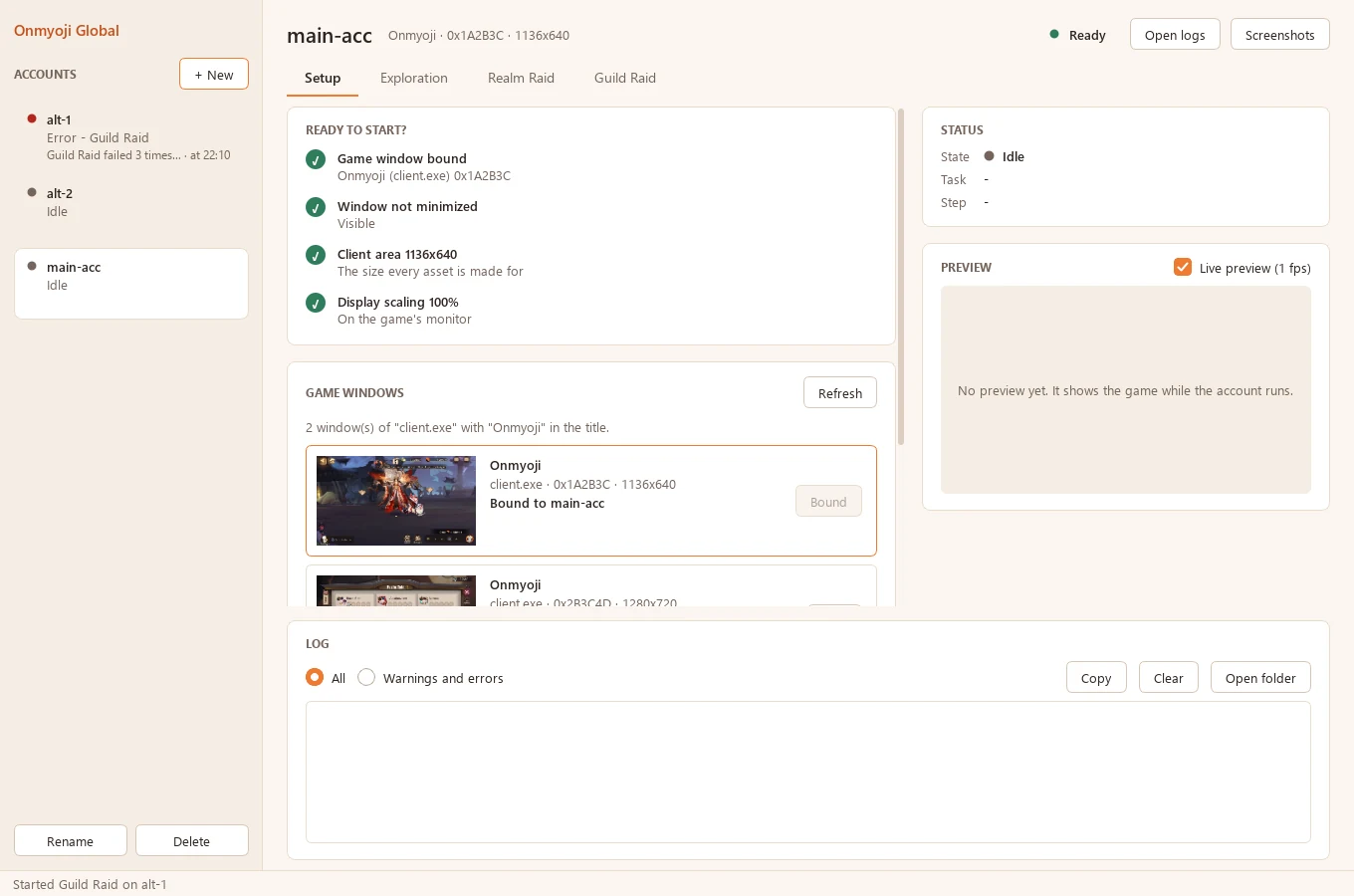
Shira's Setup page: a Ready to start checklist with all four checks passed (game window bound, not minimized, client area 1136x640, display scaling 100%), the list of game windows, and the status, preview and log panels.
The Setup page of Shira, after binding the game window.

Features

Four chores. One Start button.

Pick a feature, press Start, and Shira runs it until it is done. Realm Raid hands over to Guild Raid when tickets run out; Exploration runs Realm Raid when tickets are full, then carries on.

Realm Raid

Clears the board without wasting tickets.

  • Checks your tickets before every attack and hits the first attackable card first.
  • Never retries a card it already lost on the current board.
  • Dismisses victory, reward and streak screens, and refreshes the board — optionally after three wins.
  • Hands over to Guild Raid when tickets run out.

Start on the Realm Raid page
Guild Raid

Works down the guild list until there is nothing left to win.

  • Switches to the Guild tab and reads the 0/6 wins counter and the ! cooldown tooltip.
  • Raids the list top-down in scrolling passes.
  • Stops on all-KO, empty passes, quota or cooldown — or waits for the quota.

Start on the Guild Raid page

Exploration

Chapter 1 or chapter 28 (hard), chests and all.

  • Fights every monster or only the EXP-up ones, then the boss, treasure chests and victory screens.
  • When realm tickets are full it can run Realm Raid, then continue exploring.
  • Auto Rotation: optionally fills each stage's rotation with Material (M) or N cards until the Amount is full, then switches Auto Rotation on.

Start on the Exploration world map

Bondling Fairyland solo

Search, or catch one of eight bondlings.

  • Search mode fights Search battles with your search lineup until you press Stop.
  • Catch mode challenges a bondling from Heian-Kyo or Ominous Land with your catch lineup until its balls run out, after setting your pact-forming options.
  • Out of balls, it can spend an Echo Pact stone and/or run a batch of Search battles, then try again.
  • Lineups come from your Pre-Set Lineups. A run of lost battles (three by default) stops either mode.

Start on a Bondling Fairyland area page

Wanted-quest invitations are refused automatically.

How it works

Bind. Pick. Start.

Set an account up once; after that, a run is one button away.

  1. Bind the game window

    Create an account with + New, start the game and press Bind next to its window. Ready to start? lists anything still missing: a window that is not minimized, a 1136×640 client area (Fit window sets it) and 100% display scaling. For an emulator, only the ADB serial is needed.

  2. Pick a feature

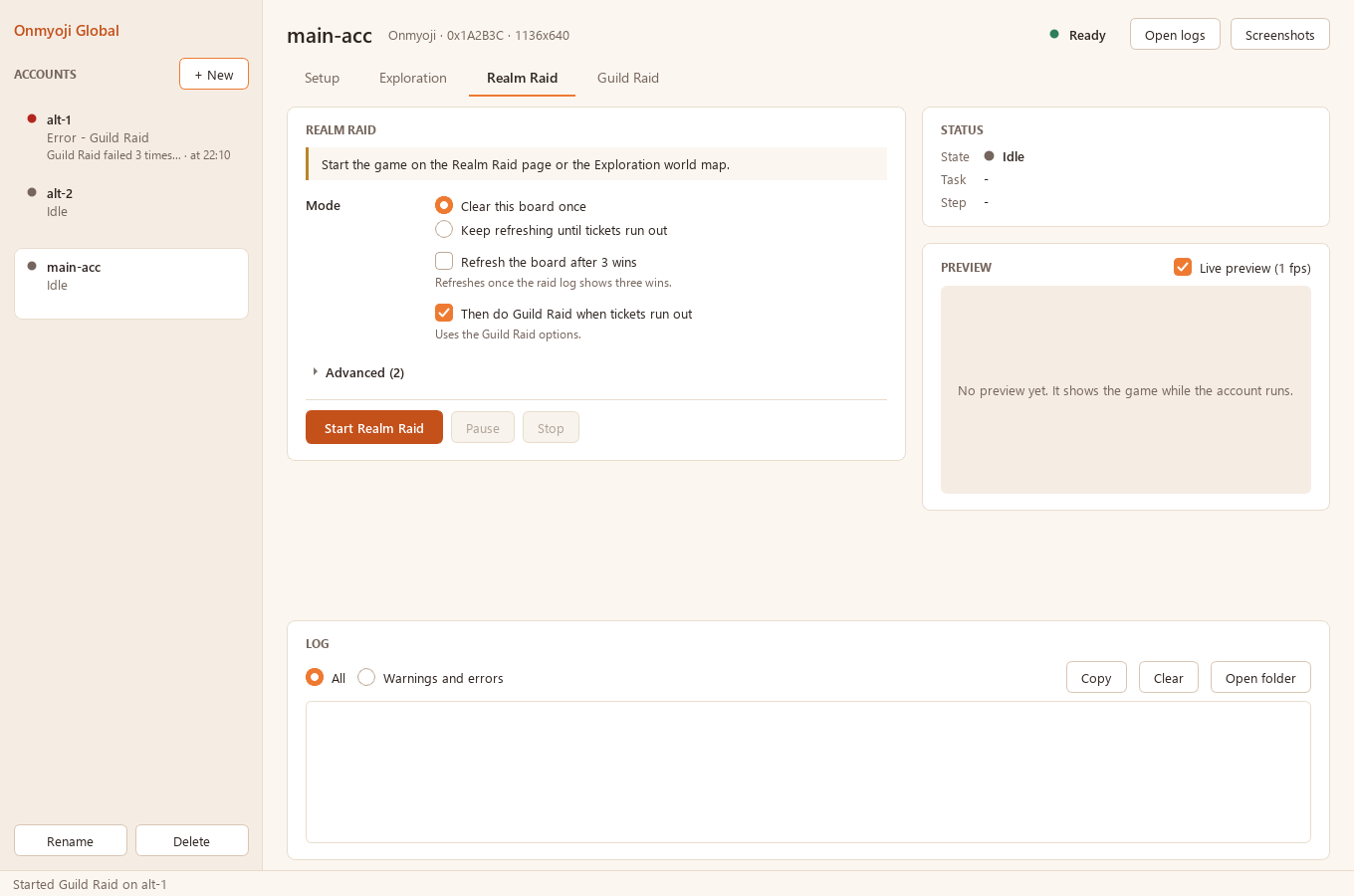
    Exploration, Realm Raid, Guild Raid or Bondling Fairyland. Each tab names the game page to start from and shows a few options with one-line hints, saved as soon as you change them. The rest sits under Advanced.

  3. Press Start

    The status card shows the state, task and step, next to a live preview (1 fps) and the account's log. Pause, Resume or Stop at any time. After a stop you get the reason and how to fix it, with the newest error screenshot.

The Realm Raid tab: a hint to start on the Realm Raid page or the Exploration world map, mode options, the Start Realm Raid, Pause and Stop buttons, and the status and preview cards.
The Realm Raid tab: start-page hint, a few options, and Start.
  • Stays out of your way

    Input is sent as background window messages to the bound game window only. Shira does not take focus or move the mouse. Don't minimize the game — if you do, it is restored automatically.

  • Several accounts in parallel

    Each account runs in its own process. The sidebar shows every account's state and its current step or stop reason.

  • Never waits forever

    60 s without progress (10 minutes during battles and cooldowns) fails the task; it runs again from the current screen, and the account stops after three failures in a row.

Safety boundaries

It looks at the screen, like you do.

Shira decides what to do from the game window's picture alone, and sends its input to that one window.

What it uses

  • Template matching and region probes on the game window's image
  • Offline OCR of on-screen numbers, such as the realm ticket counter
  • Input to the bound game window only

What it never does

  • No game memory access
  • No injection
  • No login automation

Config, logs and error screenshots stay in config/, log/ and screenshots/ beside Shira.exe; it writes nothing elsewhere.

Requirements

Before you press Start

System
Windows 10 or 11Unzip anywhere and run Shira.exe.
Game
Onmyoji GlobalThe Steam window client, or an Android emulator over ADB.
Client area
1136 × 640The size every asset is made for. Fit window sets it, and Start resizes the window unless you turn that off.
Display scaling
100%On the game's monitor — the client is DPI-unaware.
Game window
Bound, not minimizedThe bound window stays the only target. After restarting the game, bind it again.
Starting page
The feature's own pageExploration world map, Realm Raid page, Guild Raid page or a Bondling Fairyland area page. Navigation from the courtyard is not supported yet.

Download

Get Shira

Downloads are private: you need an access key from the maintainer. Enter it here and the latest release starts downloading.

  • A portable zip: Shira.exe next to an assets/ folder. No installer.
  • Unzip anywhere and run Shira.exe. It keeps config/, log/ and screenshots/ beside itself.
  • Windows 10/11.

Download the latest release

The key is only sent to check access. It is never saved in this browser.